
Set Up CanajoyTv With A Portal Address Or Set-Top Box
For MAG and other set-top boxes that use a portal address, and player apps such as TiviMate that sign in with a server, username and password (Xtream Codes) or a playlist link (M3U). There's nothing to download from us: the CanajoyTv Team sets it up and emails you your details.
Before You Start
- A CanajoyTv plan that includes the portal (set-top box) option. Don't have one yet? Choose a plan and contact us: we accept PayPal.
- Set-top box: the box connected to your TV and the internet, and its MAC address (step 1).
- Player app: the app already installed on your TV, phone or computer.
- Each portal login or box works on one device at a time and counts as one of your plan's devices.
Portal access is set up by the CanajoyTv Team for your plan. Send us your box's MAC address (or tell us which player app you use) and we reply with everything you need to enter. Using a set-top box? Follow steps 1 to 4 and 7. Using a player app? Follow steps 2, 5 (or 6) and 7.
-
1
Set-Top Box: Find Its MAC Address
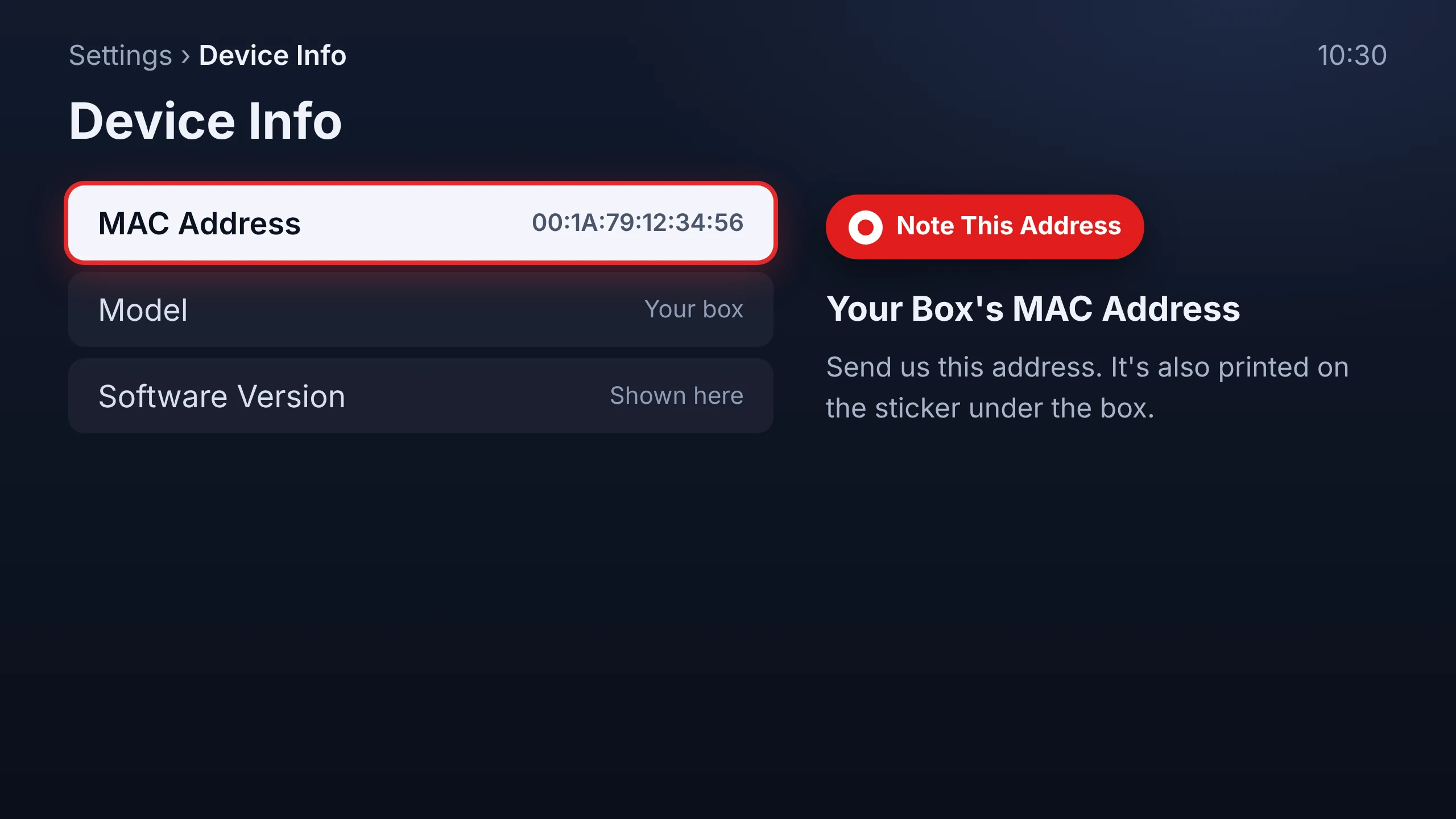
On your box, go to Settings › Device Info (on some boxes System Information or About) and note the MAC Address. On MAG boxes it starts with 00:1A:79. It's also printed on the sticker under the box.
-
2
Email Us For Your Portal Details
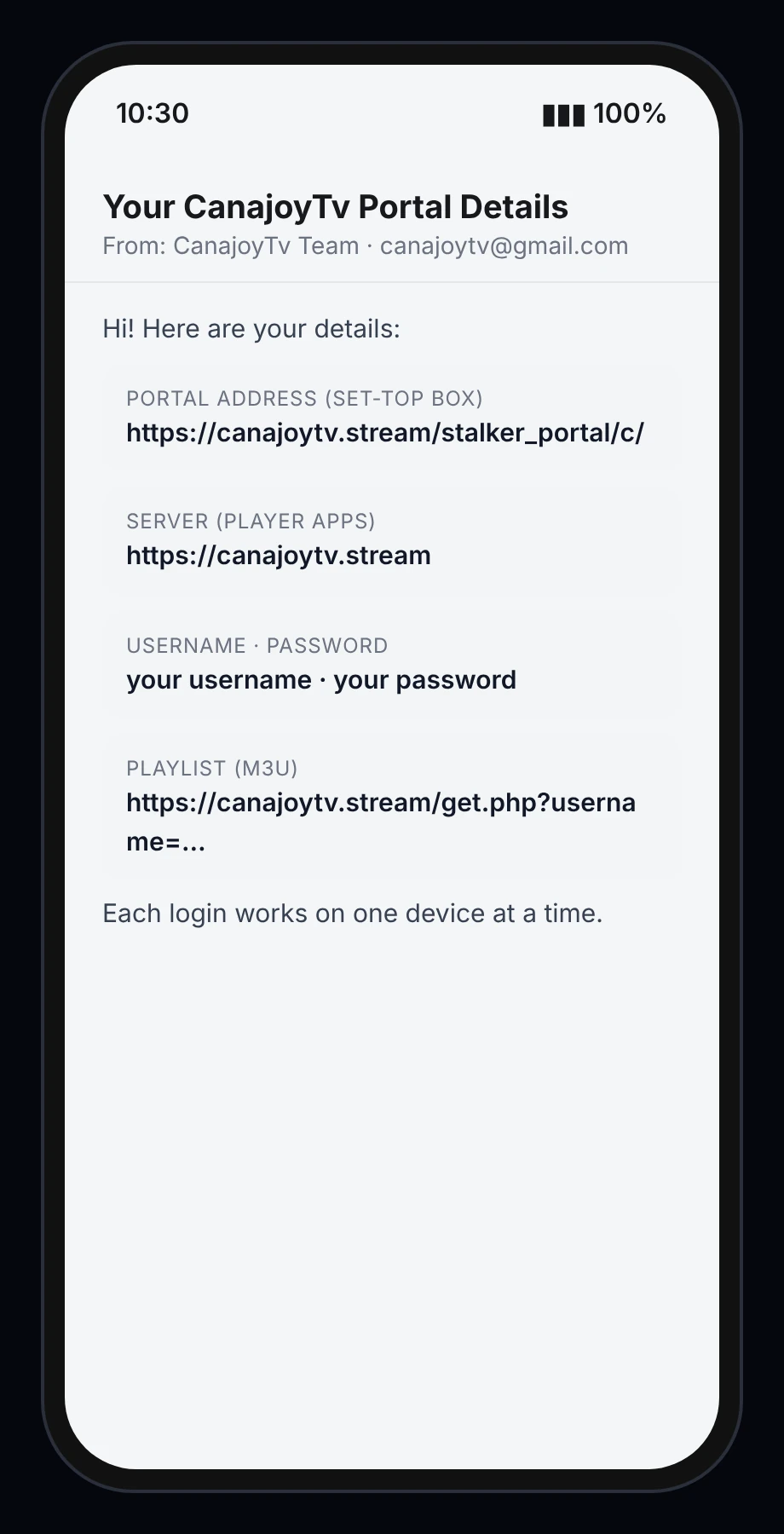
Select Email Us on the CanajoyTv website (or write to canajoytv@gmail.com, or Instagram @canajoytv) with your Unique ID and either your box's MAC address or the name of your player app. We add it to your plan and email you your portal details.
-
3
Set-Top Box: Enter The Portal Address
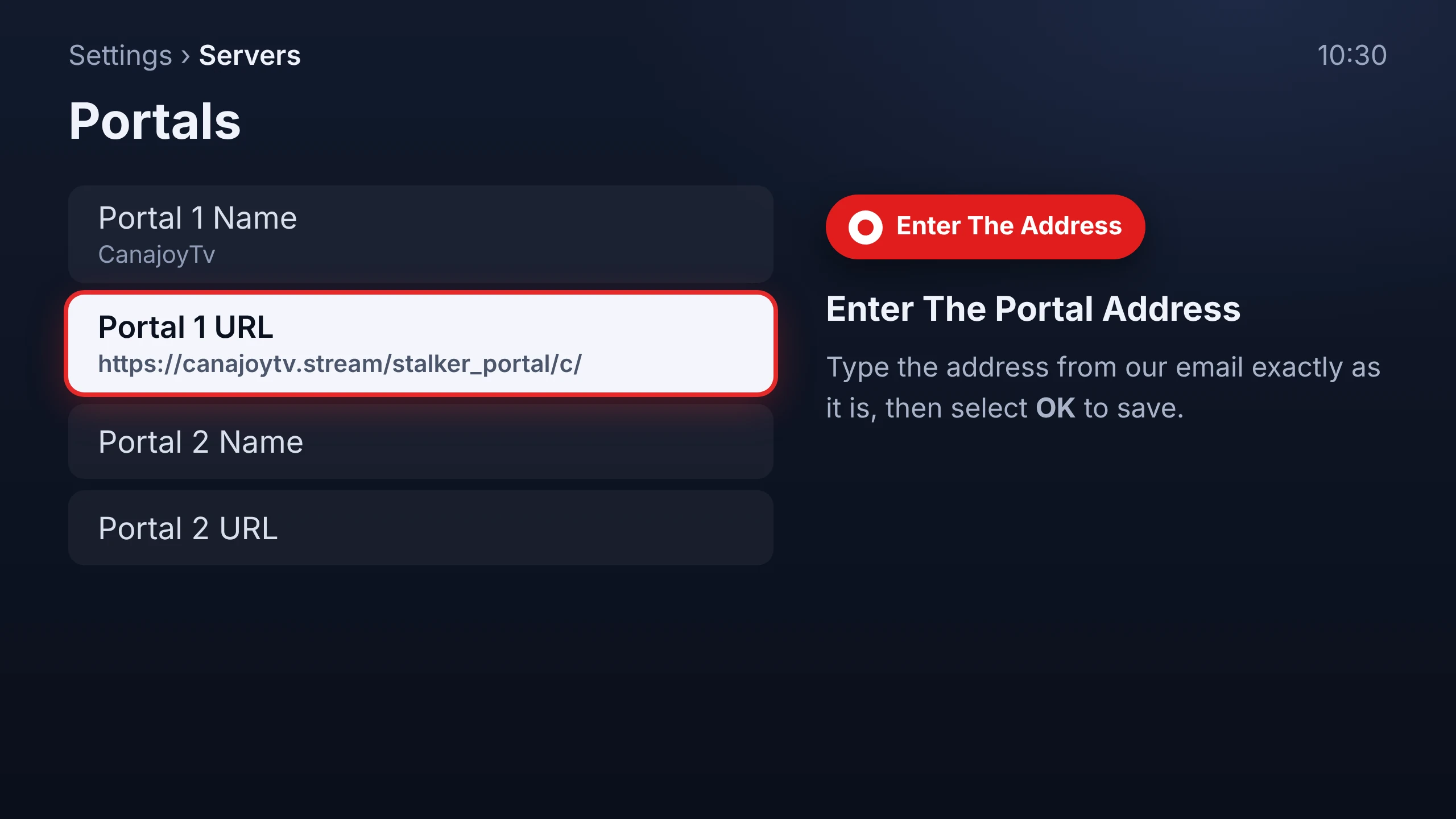
On the box, go to Settings › Servers › Portals. Set Portal 1 Name to CanajoyTv and Portal 1 URL to the address in our email: https://canajoytv.stream/stalker_portal/c/. Select OK to save.
-
4
Set-Top Box: Save And Restart
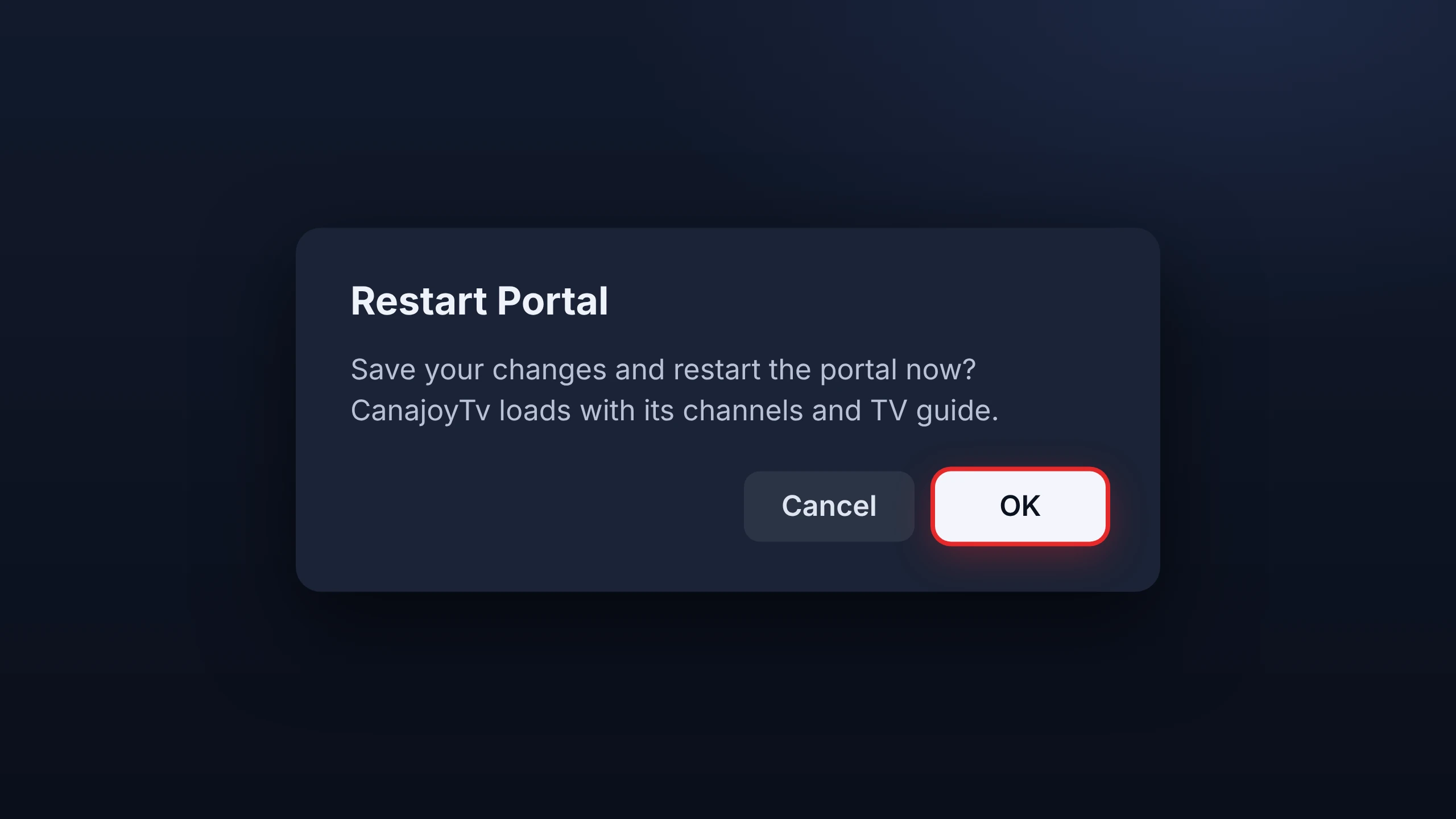
Choose OK when the box asks to restart the portal (or unplug the box for 10 seconds and plug it back in). CanajoyTv loads by itself.
-
5
Player App: Add Your Login
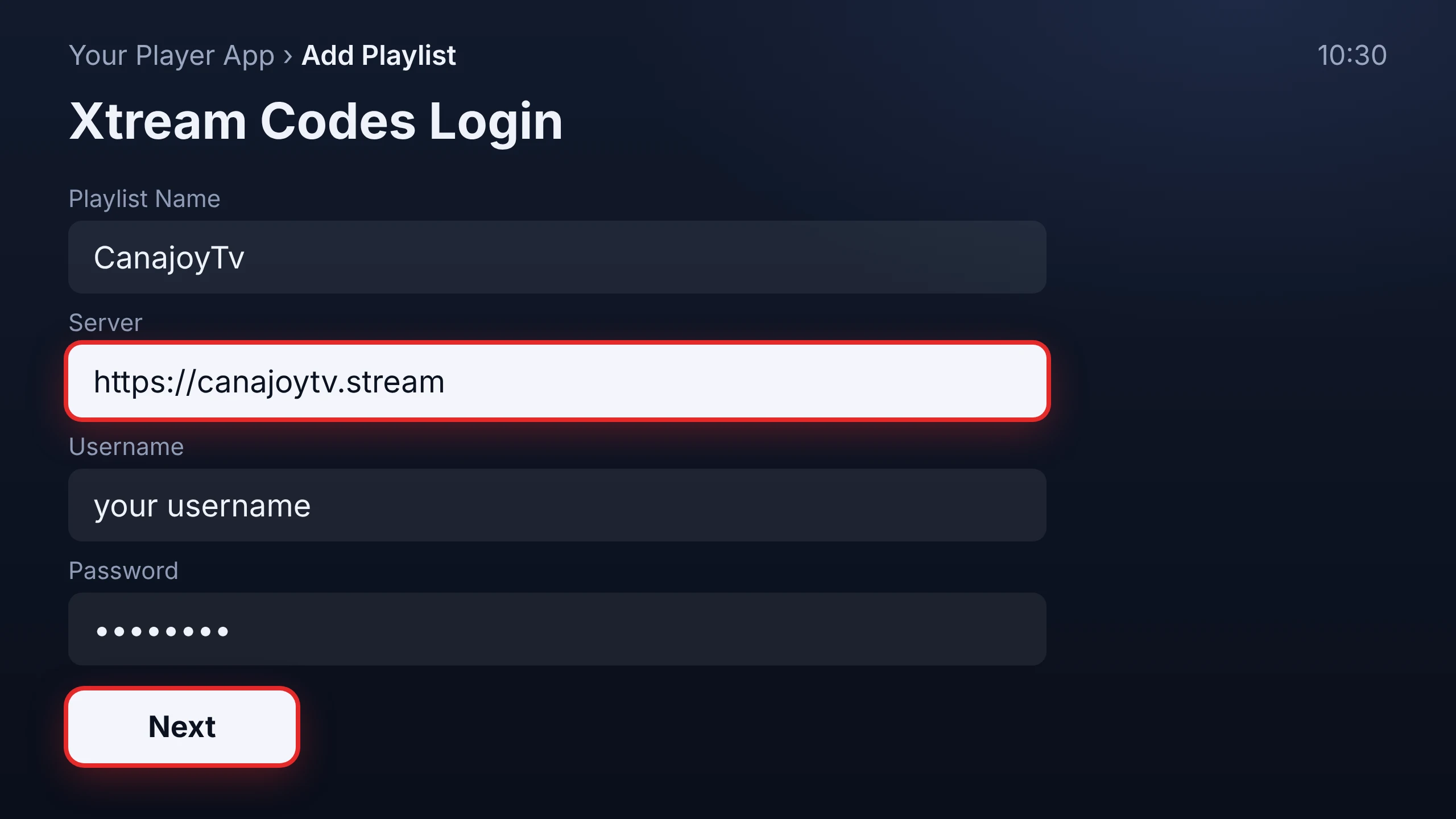
In your player app, choose Add Playlist and then Xtream Codes (sometimes called Xtream Login or Login With Username). Enter the Server https://canajoytv.stream and the Username and Password from our email, then select Next.
-
6
Player App: Or Use The Playlist Link
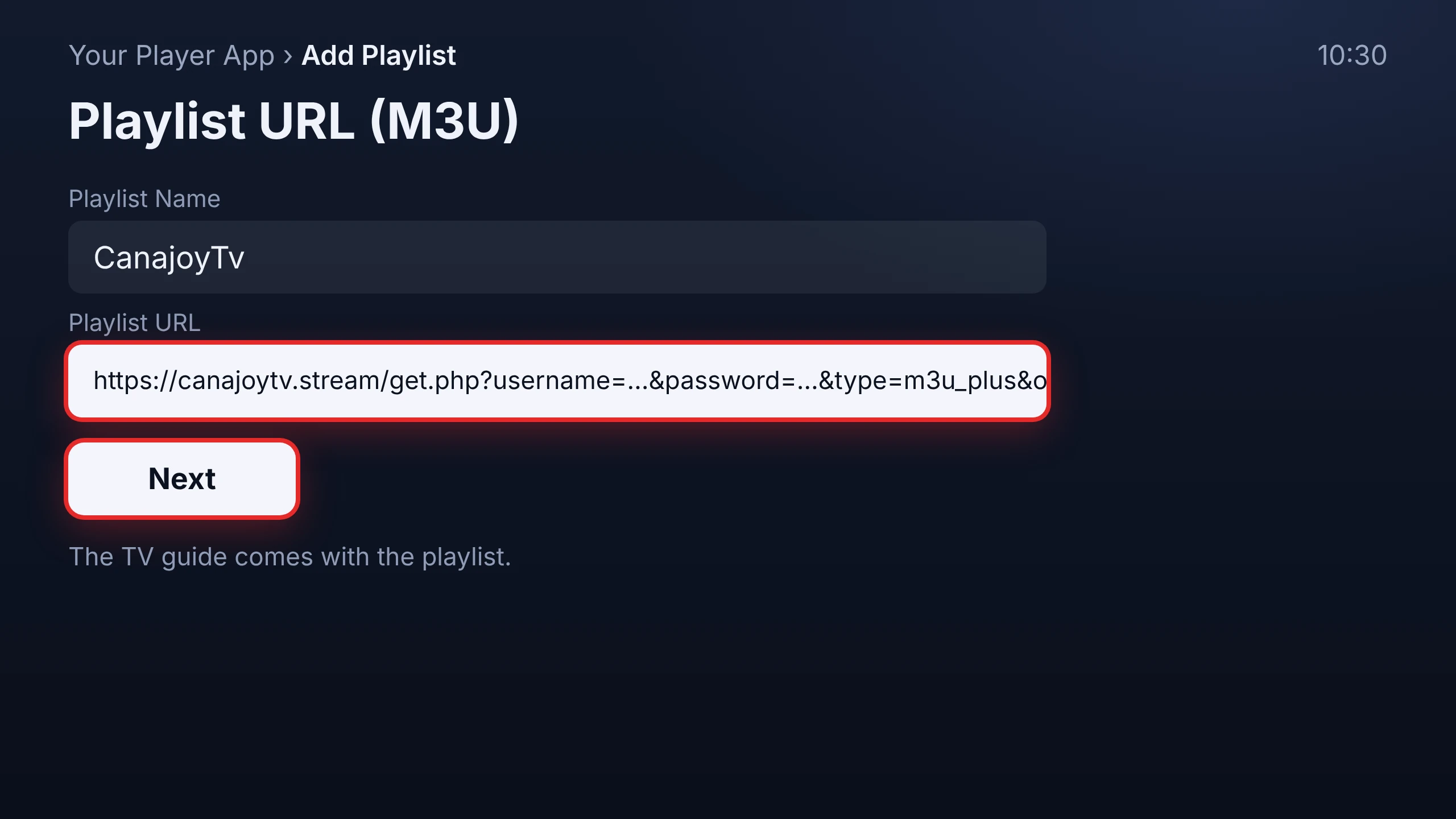
If your app only takes a playlist, choose M3U Playlist (or Playlist URL) and enter the Playlist (M3U) link from our email. The TV guide comes with the playlist.
-
7
Start Watching
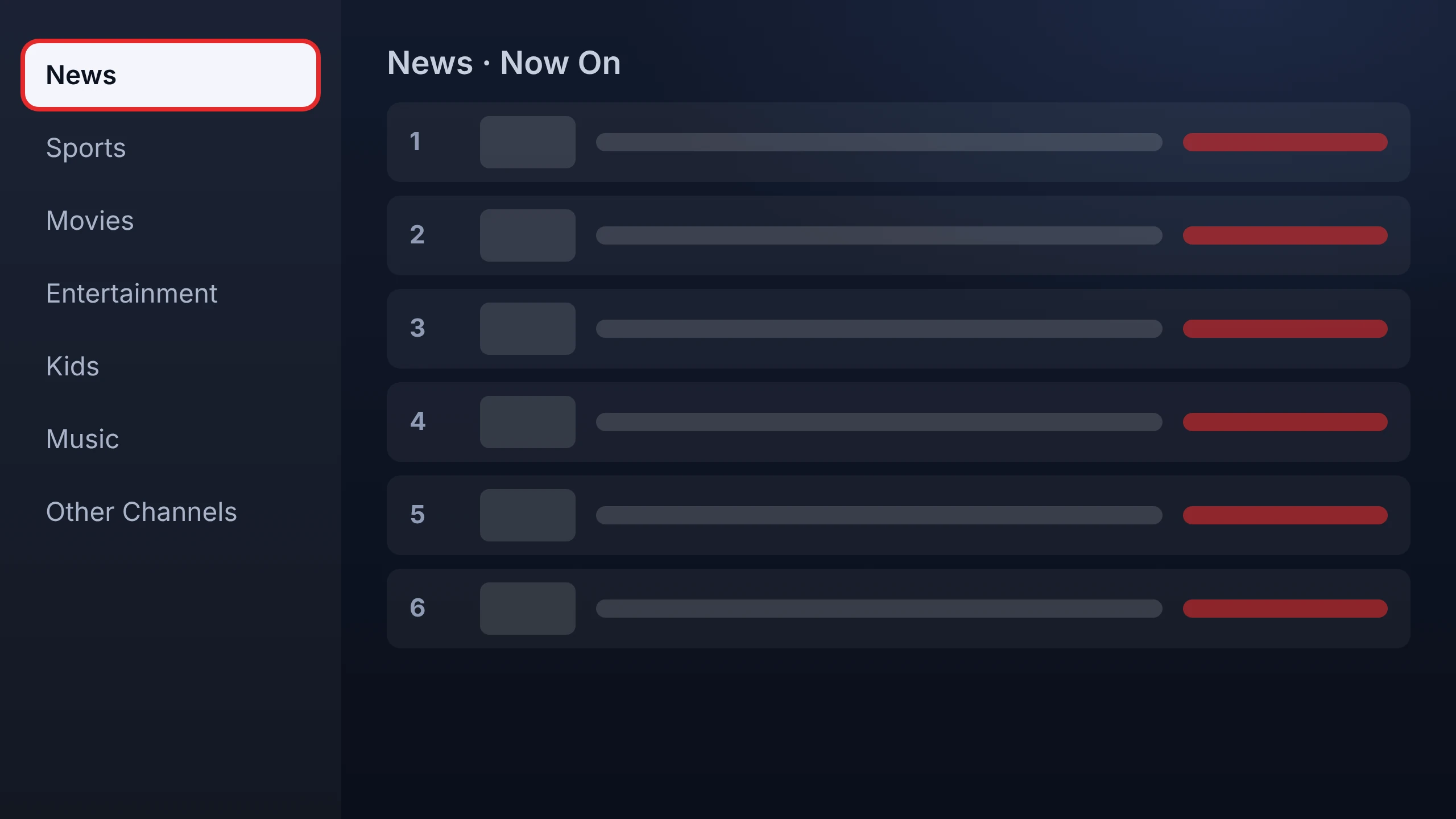
Your channels appear in categories, with the TV guide. Pick a category and a channel: enjoy watching!
Good To Know
- One device per login: each portal login or box works on one device at a time. To watch on more devices together, choose Up To 4 Devices and ask us for another login.
- Works with: MAG boxes and other boxes that use a portal address with their MAC address, and player apps that support Xtream Codes logins or M3U playlists (for example TiviMate). Other boxes and apps may work too, but we haven't tested them: email us first and we'll help.
- New box? Email us the new MAC address and we'll move your plan to it.
- Prefer an app? CanajoyTv also has its own app for Android TV, Fire TV Stick, Google TV, phones and Windows.
Need A Hand?
Email canajoytv@gmail.com or message us on Instagram @canajoytv and we'll help you set up.
The pictures show each step. Menus can look a little different on your device.
Other devices: Fire TV Stick · Android TV · Google TV · Android Phone · Windows · Web