
Install CanajoyTv On Android TV
For Android TVs and boxes such as Sony, Philips, Sharp and NVIDIA Shield. Have a Google TV? Use the Google TV guide. It takes about 5 minutes.
Before You Start
- Your CanajoyTv Unique ID (the CanajoyTv Team sends it when you subscribe)
- Your TV connected to the internet and signed in to Google Play
- If you installed CanajoyTv on this device before 18 November 2026, uninstall that old version first (one time only).
CanajoyTv isn't in the Google Play Store, so your TV asks for your permission before installing it. These steps give that permission to the free Downloader app, which then installs CanajoyTv for you.
-
1
Install The Downloader App
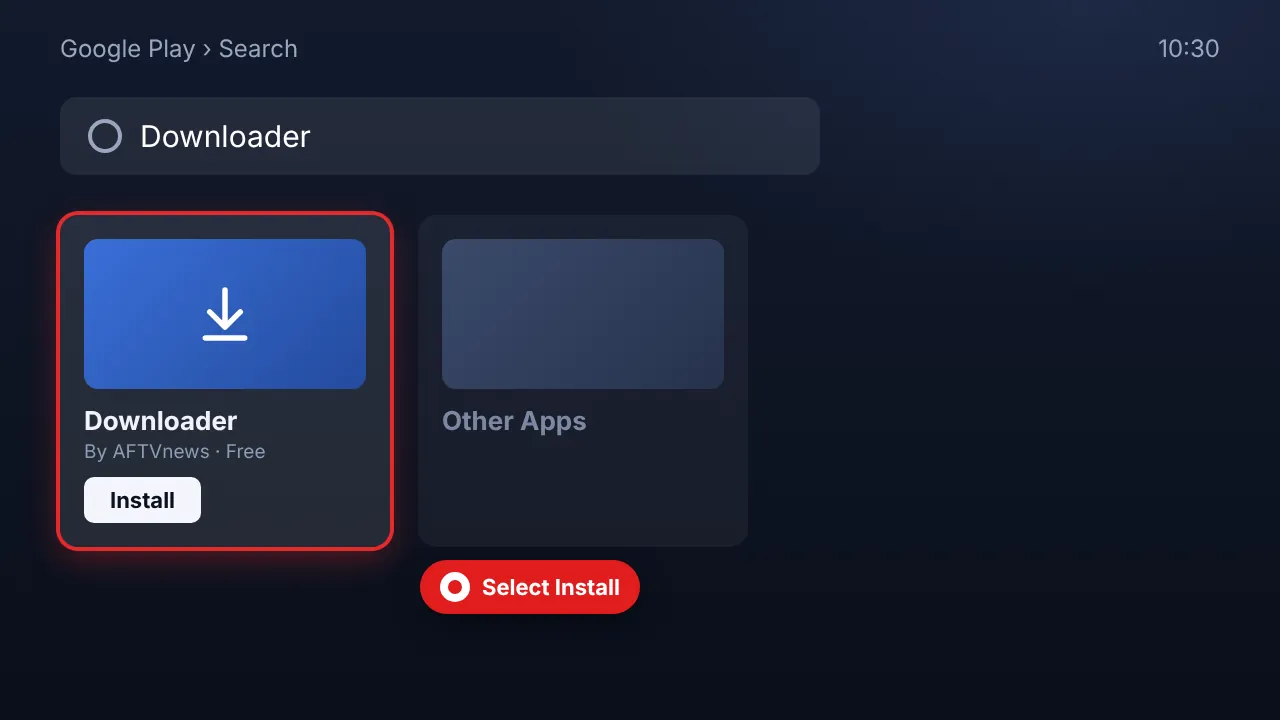
Open Google Play, search for Downloader, choose Downloader by AFTVnews and select Install. It's free.
-
2
Turn On Developer Mode
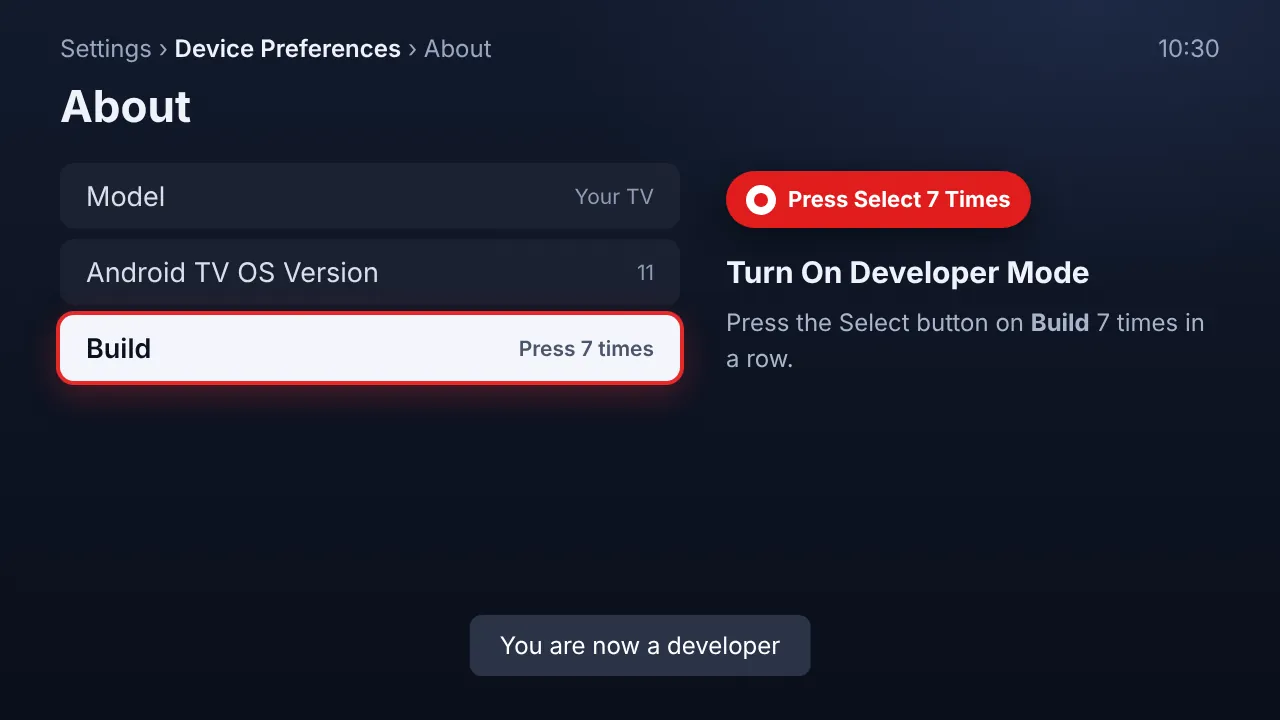
Go to Settings › Device Preferences › About. Highlight Build and press Select on your remote 7 times, until you see You are now a developer.
-
3
Allow Downloader To Install Apps
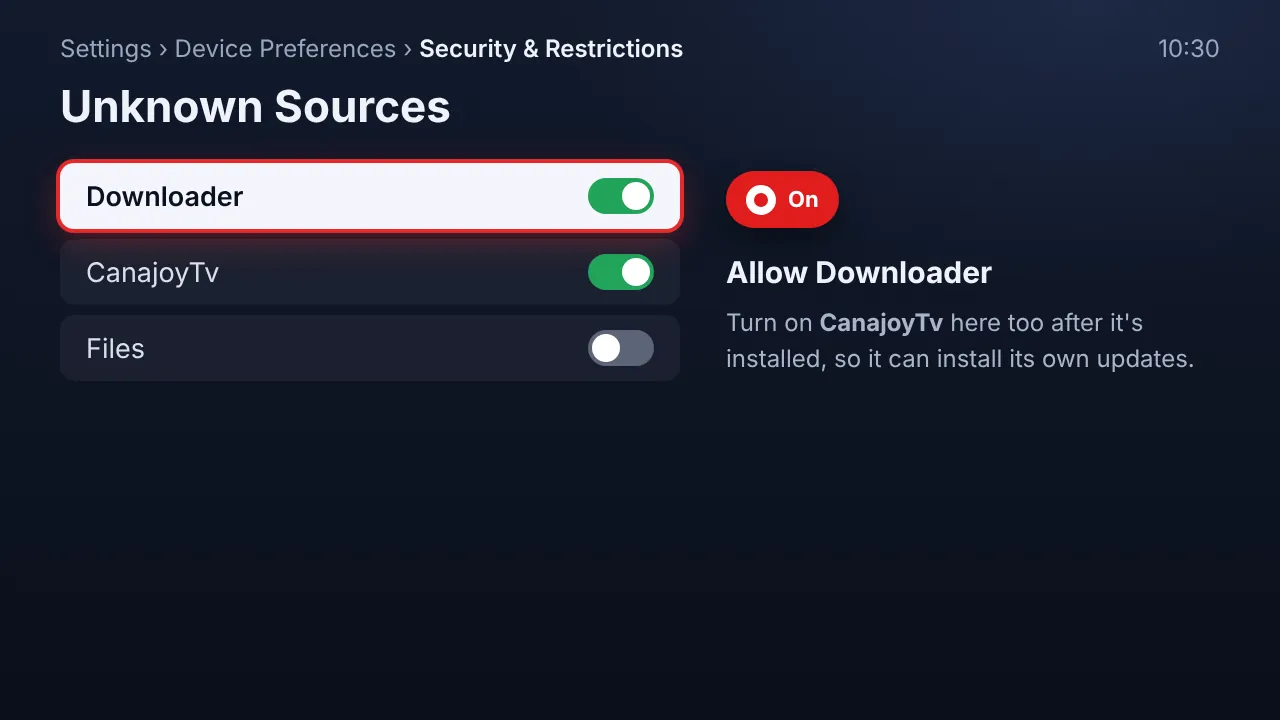
Go to Settings › Device Preferences › Security & Restrictions › Unknown Sources and turn Downloader on.
-
4
Pause Play Protect (For The Install Only)
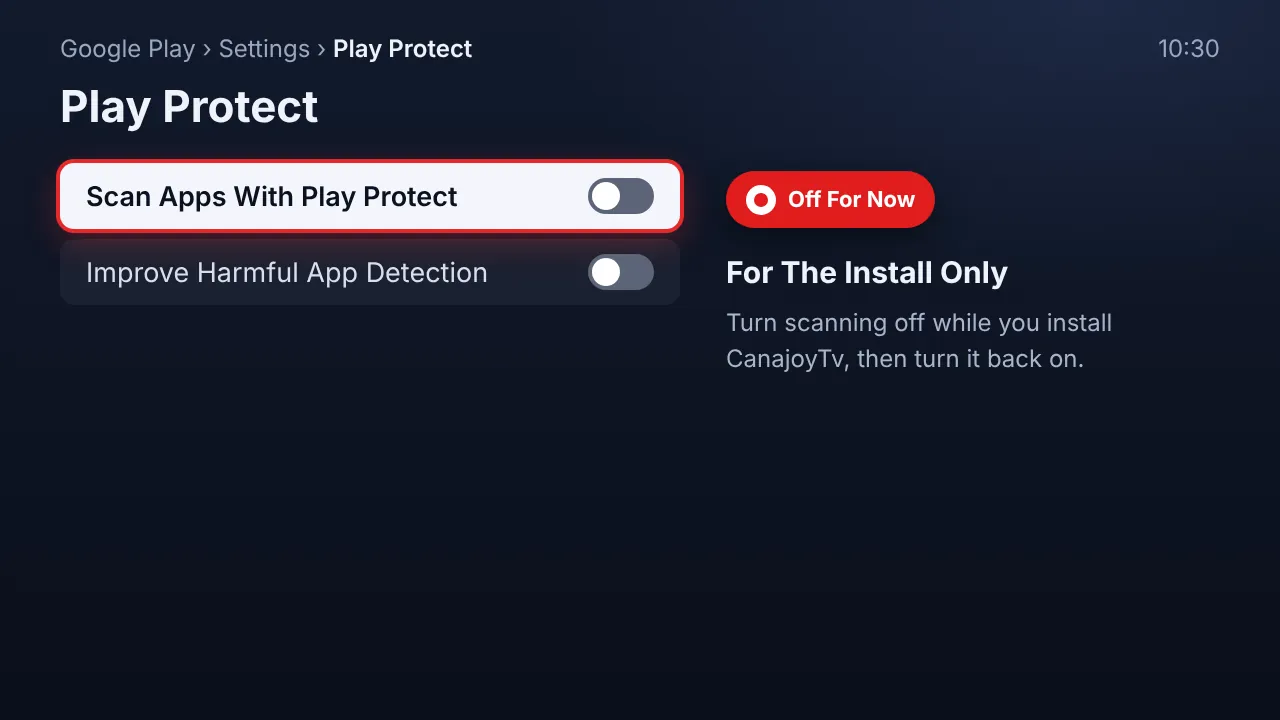
Open Google Play › Settings › Play Protect and turn off Scan Apps With Play Protect. You'll turn it back on at the end. Can't find it? Skip this step and use step 8 instead.
-
5
Open Downloader
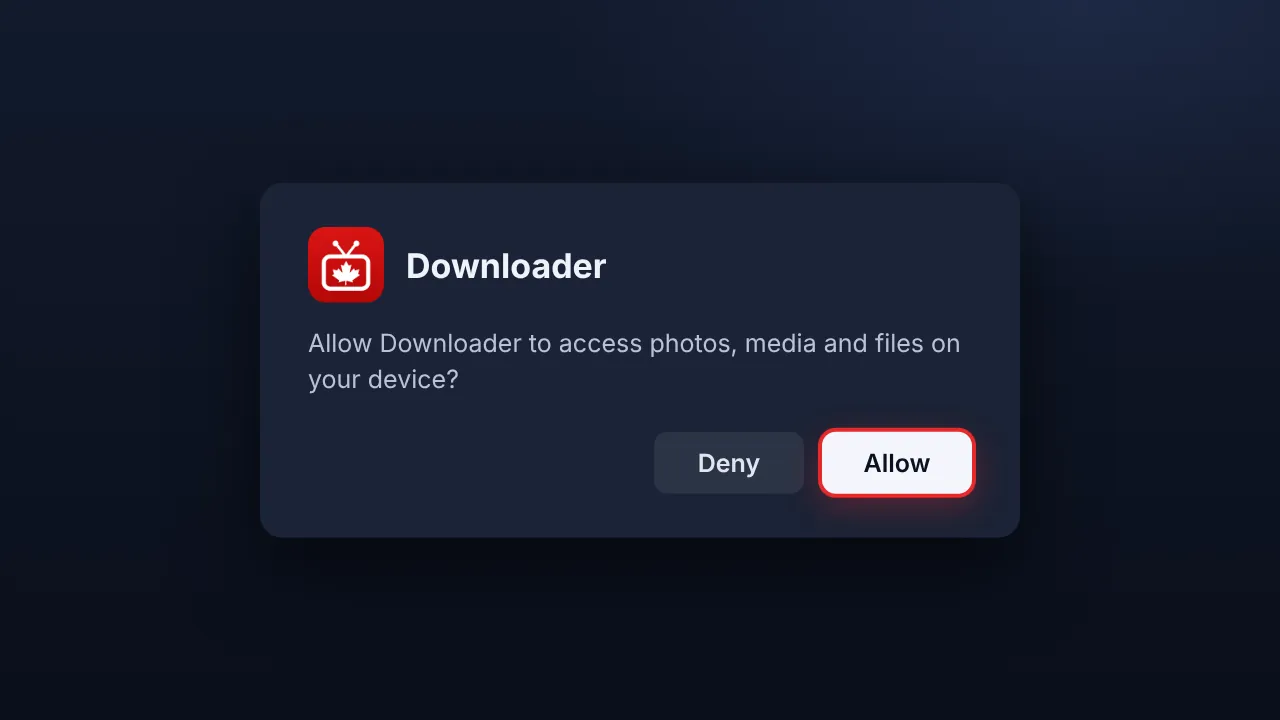
Open Downloader from your apps. When it asks to use your files, select Allow. Close the welcome message if one appears.
-
6
Enter The CanajoyTv Address
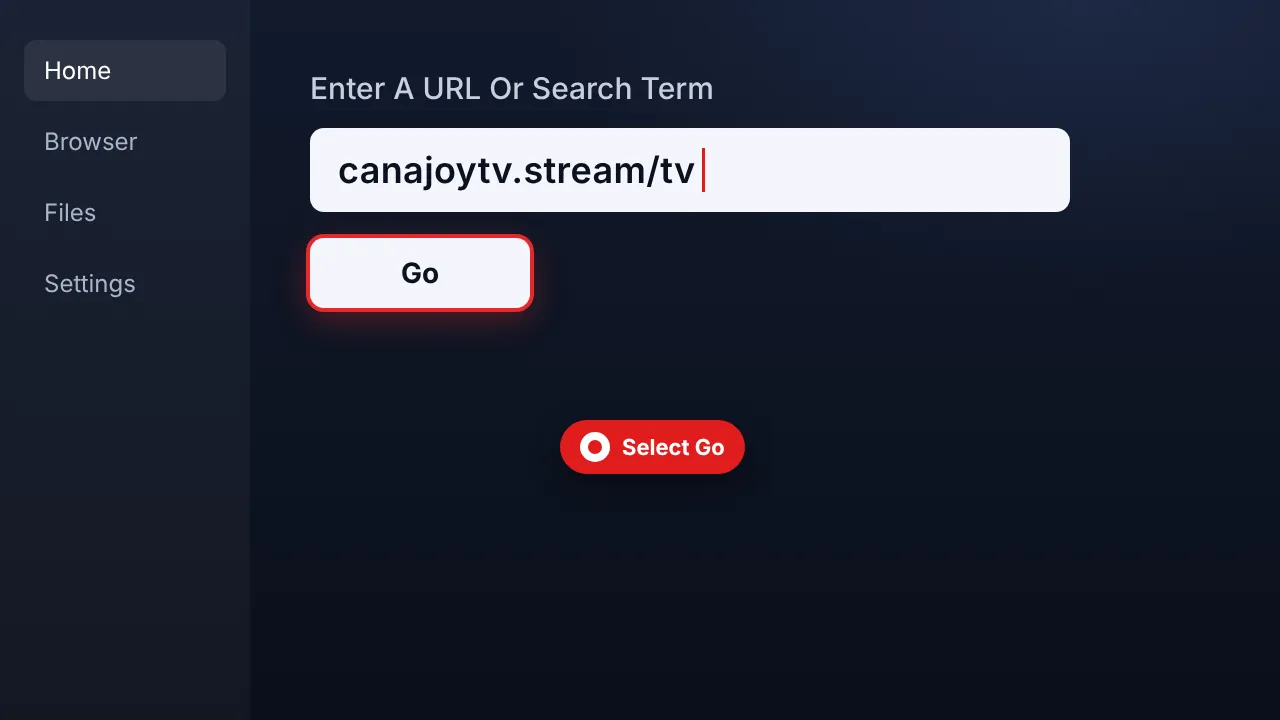
Select the address box, type canajoytv.stream/tv and select Go. CanajoyTv downloads in a few seconds.
-
7
Install CanajoyTv
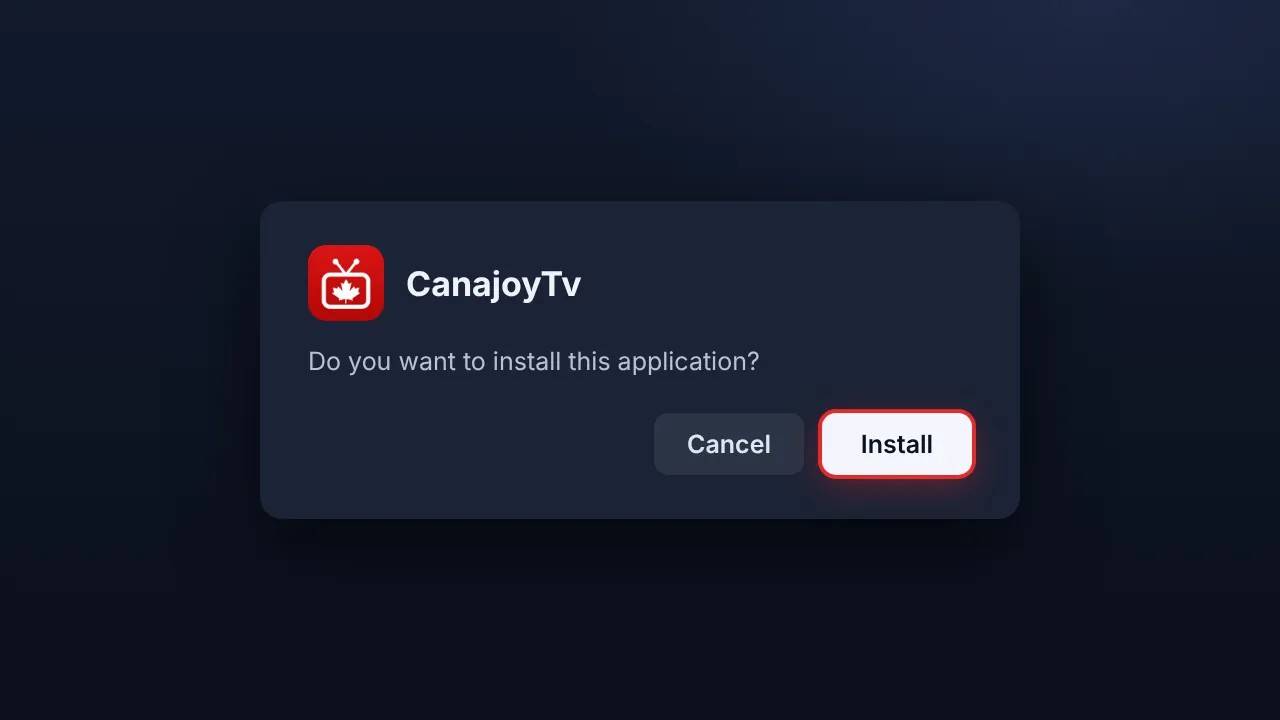
Select Install.
-
8
If Play Protect Stops The Install
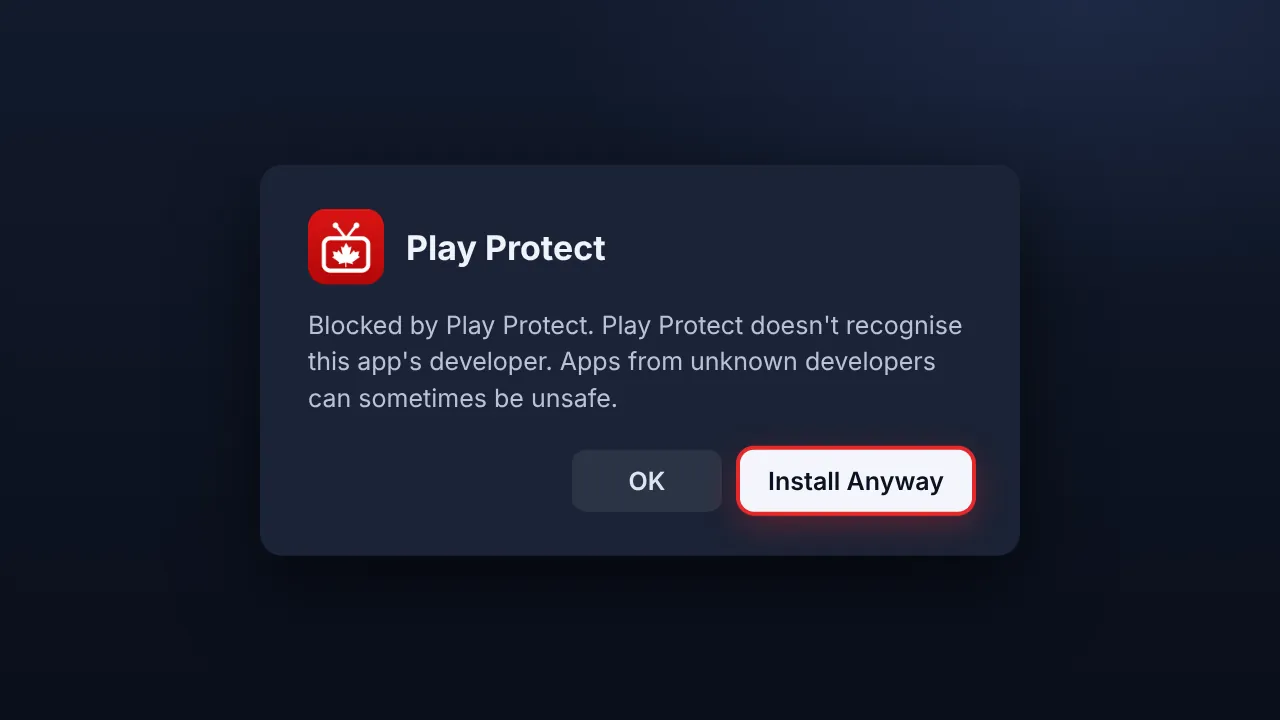
If you see Blocked By Play Protect, select More Details (if shown) and then Install Anyway. If it asks to send the app for a security check, either answer is fine.
-
9
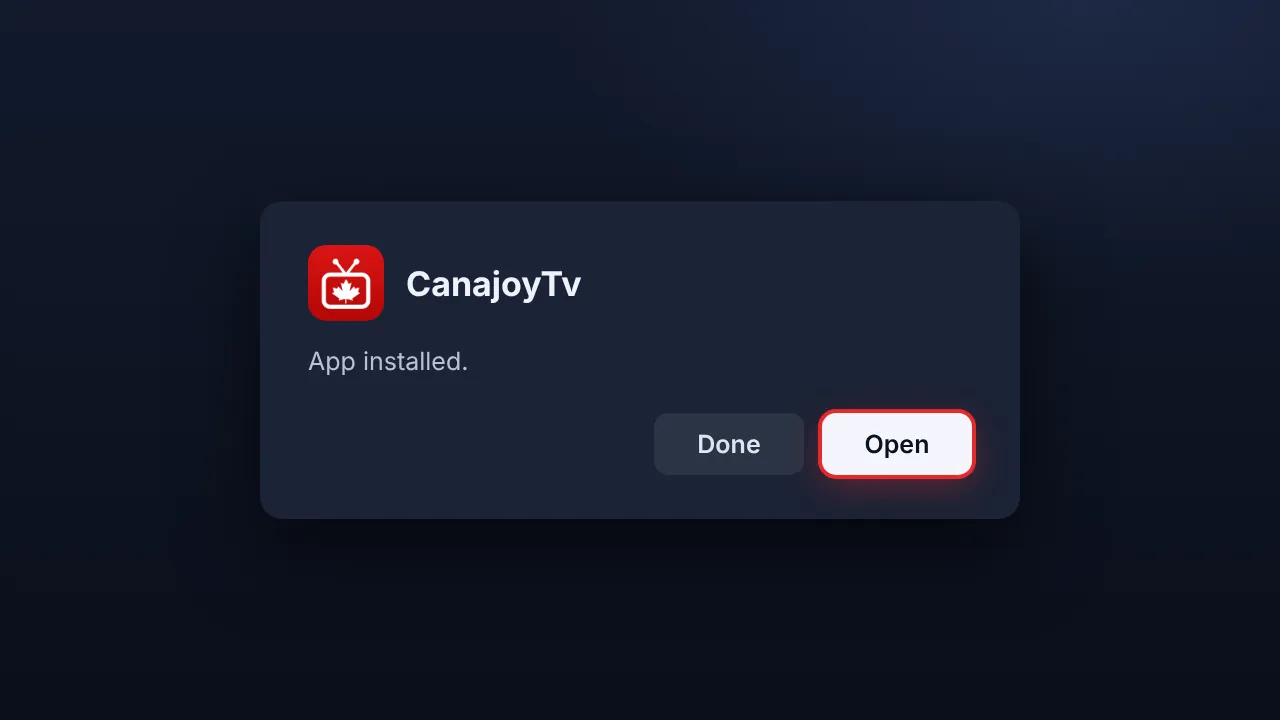
Open CanajoyTv
Select Open. If Downloader offers to delete the downloaded file, select Delete: CanajoyTv stays installed.
-
10
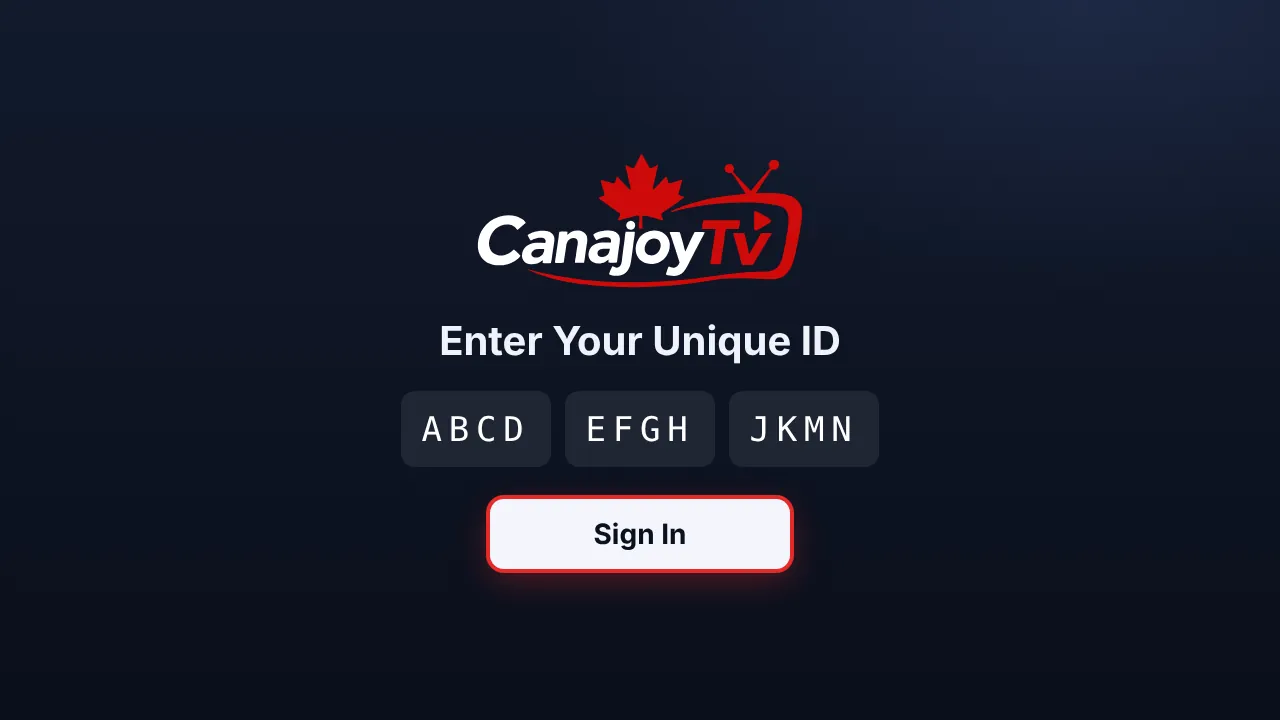
Sign In
Enter the Unique ID you received from the CanajoyTv Team and select Sign In. That's it: enjoy watching!
Good To Know
- Turn Play Protect back on: open Google Play › Settings › Play Protect and turn Scan Apps With Play Protect on again.
- Let CanajoyTv update itself: in Settings › Device Preferences › Security & Restrictions › Unknown Sources, turn on CanajoyTv too.
Need A Hand?
Email canajoytv@gmail.com or message us on Instagram @canajoytv and we'll help you set up.
The pictures show each step. Menus can look a little different on your device.
Other devices: Fire TV · Google TV · Android Phone · Windows · Web