
Install CanajoyTv On Windows
For Windows 10 and Windows 11 computers. It takes about 2 minutes.
Before You Start
- Your CanajoyTv Unique ID (the CanajoyTv Team sends it when you subscribe)
- Your computer connected to the internet
CanajoyTv is a new app, so your browser and Windows may show a warning before installing it. The steps below show each message and what to choose.
-
1
Download CanajoyTv
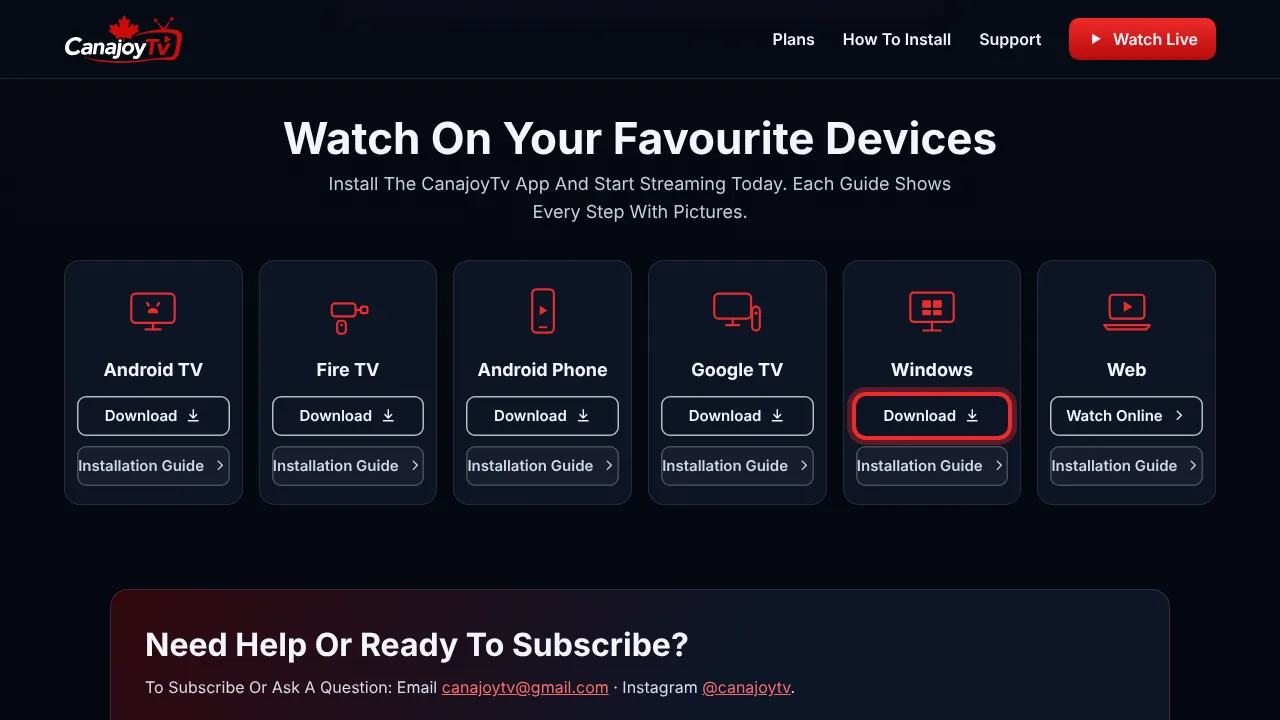
Open canajoytv.stream. In Watch On Your Favourite Devices, select Download under Windows.
-
2
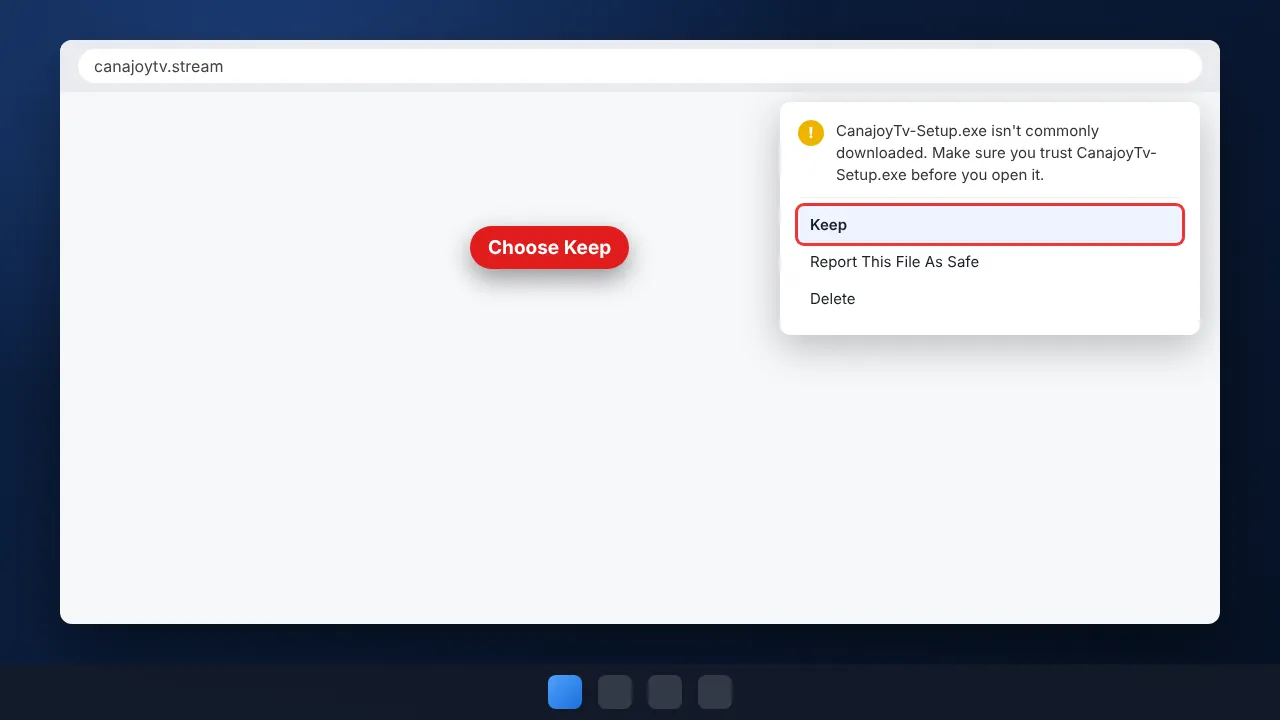
Keep The Download
If your browser says the file isn't commonly downloaded: in Microsoft Edge, select … next to the download and choose Keep. In Chrome, select Keep.
-
3
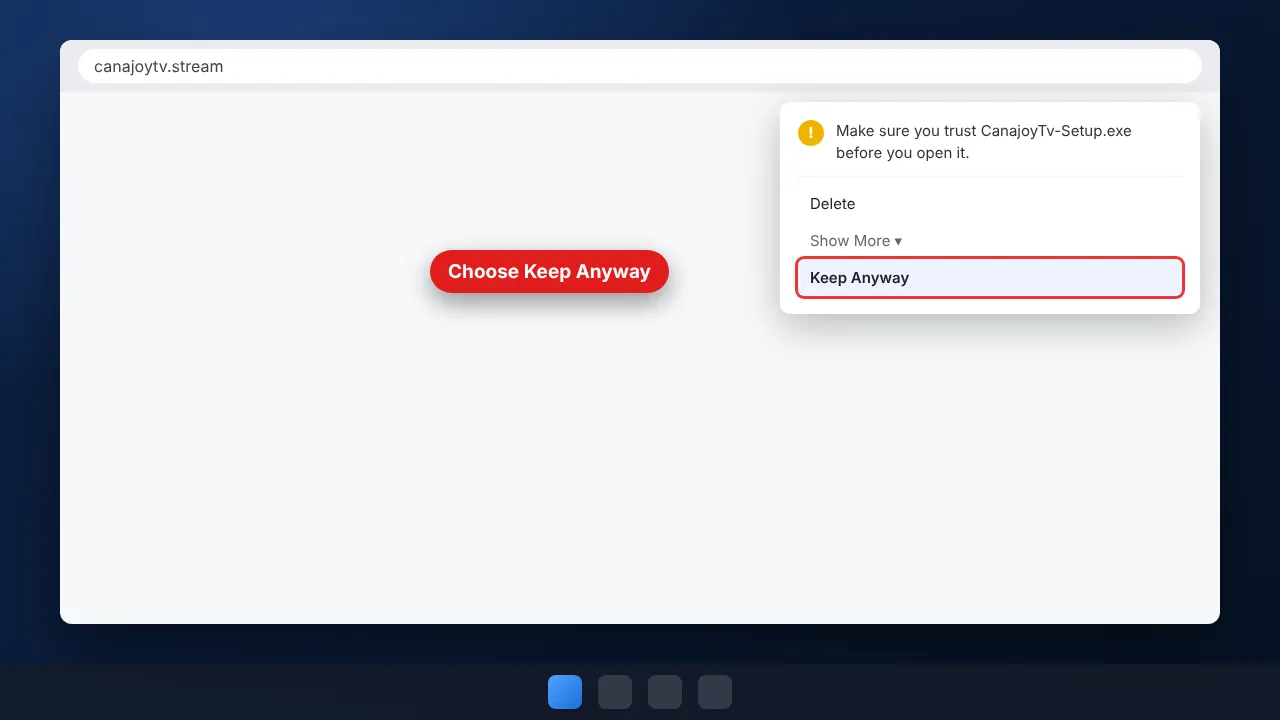
Choose Keep Anyway
Edge then asks once more: select Show More and choose Keep Anyway.
-
4
Open The File
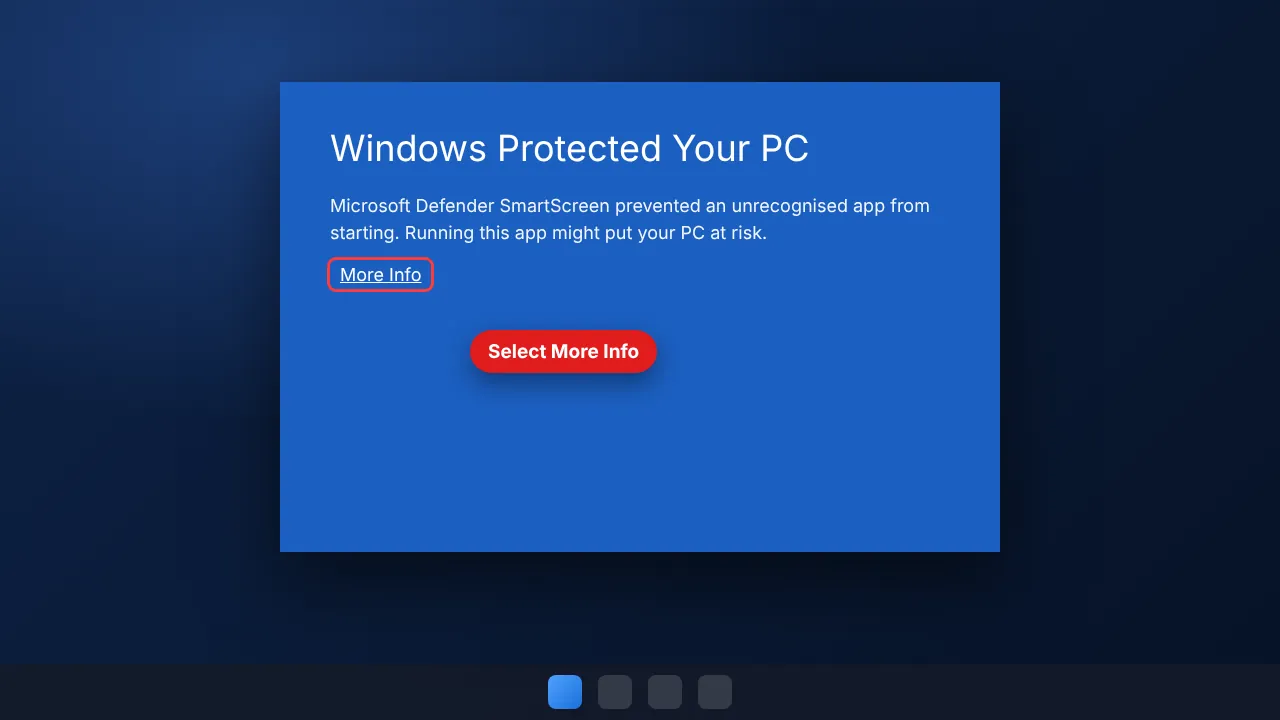
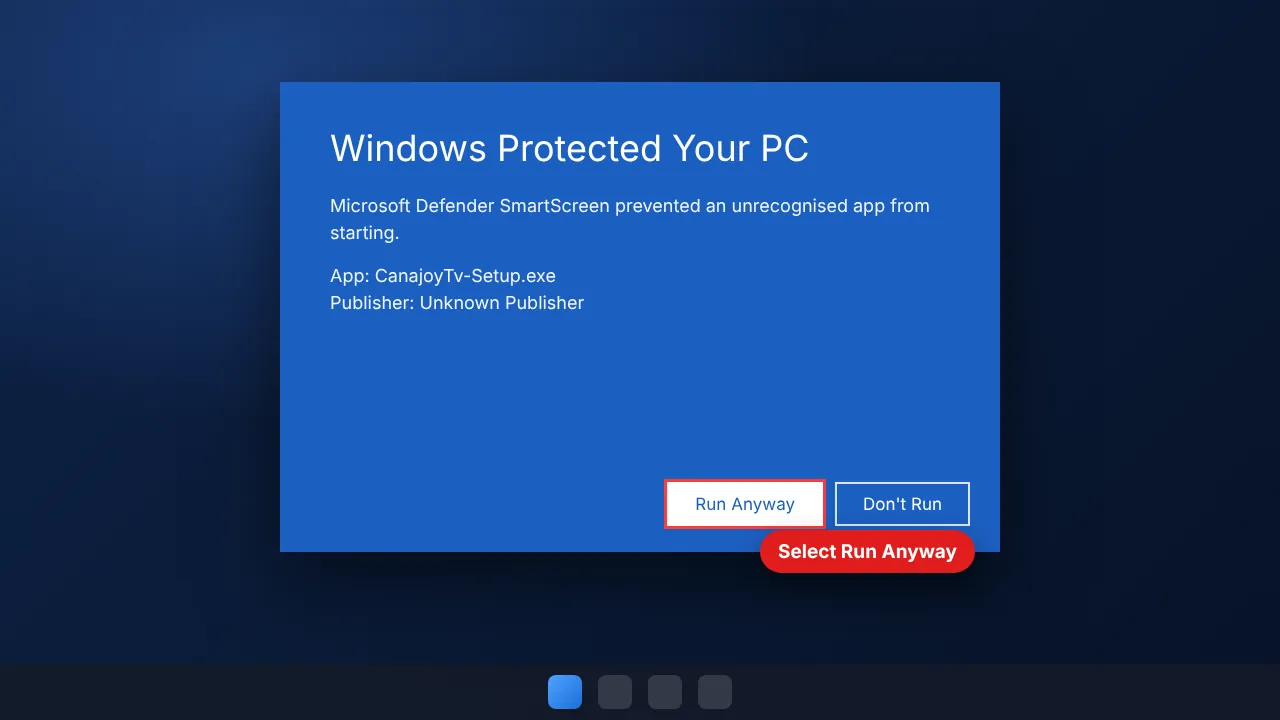
Open CanajoyTv-Setup.exe from your browser's downloads (or your Downloads folder). If Windows shows Windows Protected Your PC, select More Info.
-
5
Select Run Anyway
Select Run Anyway.
-
6
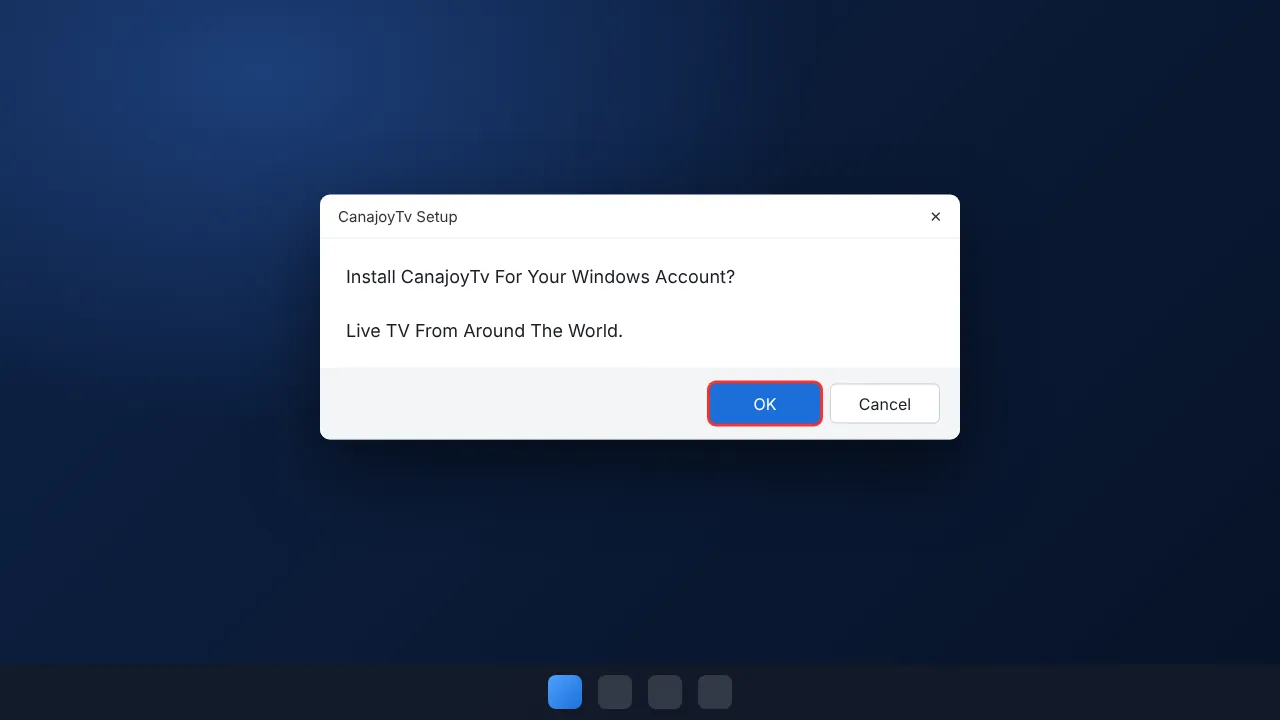
Install CanajoyTv
Select OK. CanajoyTv installs and opens by itself. You'll find it on your desktop and in the Start menu.
-
7
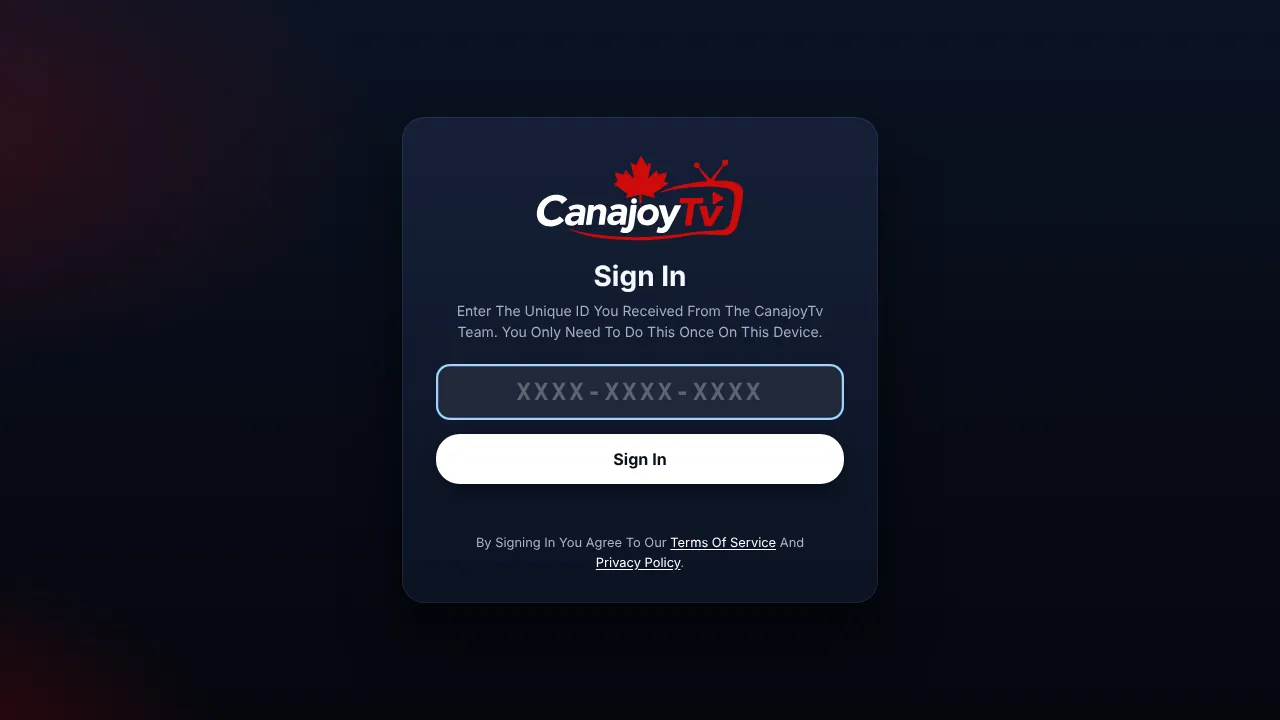
Sign In
Enter the Unique ID you received from the CanajoyTv Team and select Sign In. That's it: enjoy watching!
Good To Know
- If setup asks to download a free Microsoft component, select Yes, install it, then open CanajoyTv from your desktop.
- Windows 11 says “Smart App Control blocked an app”? The easiest option is to watch in your browser instead. Smart App Control can be turned off in Windows Security, but Windows can't turn it back on later without a reset.
Need A Hand?
Email canajoytv@gmail.com or message us on Instagram @canajoytv and we'll help you set up.
The pictures show each step. Menus can look a little different on your device.
Other devices: Fire TV · Android TV · Google TV · Android Phone · Web